How to Set Up Your Own MU Online Private Server (Beginner’s Guide)
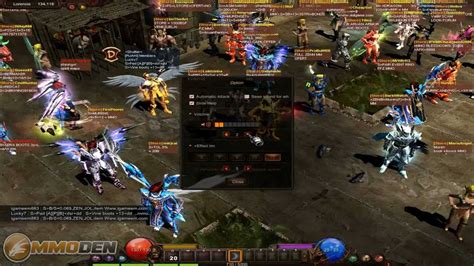
How to Set Up Your Own MU Online Private Server (Beginner’s Guide) Creating your own MU Online private server is a great way to customize your gameplay, build a community, or simply learn more about how MMORPG servers work. In this guide, we’ll walk you through the basic steps of setting up your server, where to download server files, and which forums are best for support.
✅ What You Need to Get Started A PC or VPS (Windows recommended for beginners)
Microsoft SQL Server (2008/2014/2019 depending on files used)
MU Server Files (with GameServer, Data, and tools)
MU Client (same version as server files)
Basic knowledge of network configuration and databases
? Step-by-Step Guide to Set Up a MU Online Server
- Download the Server Files You can find pre-compiled MU Online server files from the following trusted sources:
https://tuservermu.com.ve/ (Spanish/English — active community)
https://ragezone.com/ (Legendary forum for server development)
[https://forum.ragezone.com/f197/mu-releases/](Direct to MU Online section)*
https://darksteam.net/ (Useful for Season 6 and below, registration required)
[https://maxcheaters.com/forum/33-mu-online/](Has older files and tools occasionally posted)*
- Install Microsoft SQL Server Use SQL Server 2008 or 2014 for best compatibility.
During setup, install SQL Server Management Studio (SSMS) to manage your database.
Create a new database (usually called MuOnline, Ranking, Event, etc.) depending on your server files.
- Restore the Database Using SSMS, right-click Databases > Restore Database.
Choose the .bak file provided in your server files and restore it.
Make sure login accounts like sa are set up and password is configured correctly.
- Configure Server Files Open the Data or Config folder.
Modify files like commonserver.cfg, gameserver.ini, and joinserver.ini to match your database settings.
Input correct SQL login, password, server name (e.g., .\SQLEXPRESS), and version settings.
- Launch the Server Start the server in this order:
ConnectServer
JoinServer
DataServer
GameServer
Watch the logs for “successful connection” messages.
- Configure Your MU Online Client Download the MU Online client matching your server files (same version/season).
Modify main.exe or use a launcher editor to point to your server IP.
Use tools like MainInfoEditor or MuLauncher to update settings.
- Test Your Server Locally Run the game and try logging in with an account you’ve added in the SQL database (usually through MEMB_INFO table).
If all works, congrats! ?
? Recommended Forums & Communities for Support Here are the top forums where MU developers share files, guides, and help each other:
Forum Description TuServerMU Spanish-speaking dev forum with tons of files and tools RageZone Classic forum for MU Online development (English) Darksteam Legacy MU server files and mods Elitepvpers MU Section Multilingual community sharing old and new releases MaxCheaters Occasionally hosts MU dev discussions ? Where to Download Ready-to-Use MU Server Files Some quick links to popular releases:
TuServerMU Repack Section
RageZone MU Releases
Darksteam Releases
Google “MU Server Files Season X Repack” + forum name for targeted results.
? Final Tips Use Hamachi or No-IP if hosting from home and want external players to connect.
Always backup your database before testing.
For better performance, consider using a VPS or dedicated server.